Search Game Block
Using this Block
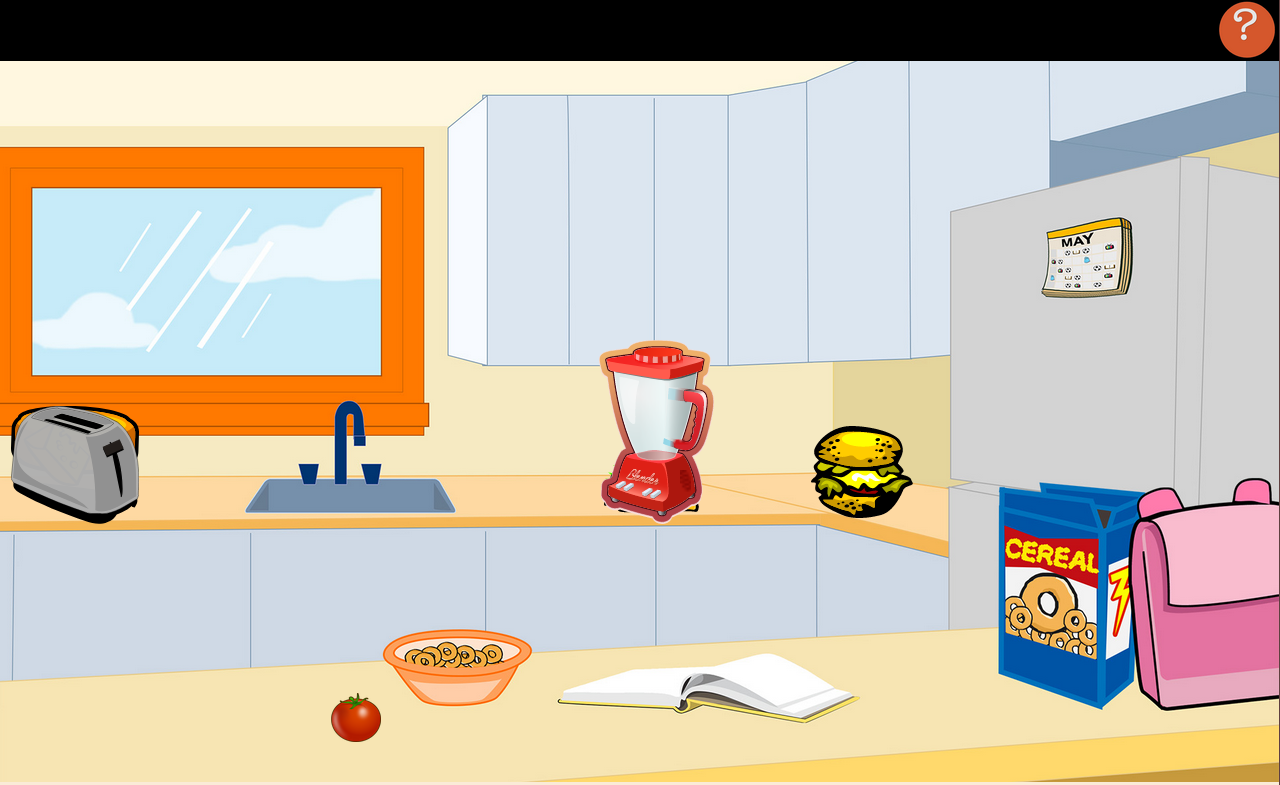
In the search game block, the player clicks on objects on screen to collect them. Some objcts may be hidden behind other ones, so they click on them to move them aside. There may also be decoy items that are not supposed to be collected.
Example Use
In a cooking game, the player needs to collect all the ingredients from the kitchen before they can make the recipe!
Making it your own
What’s in the block
Like every block, the search game block has two files in the folder:
- An HTML file: search_game.html . You should not have to change anything in this file.
- A config file: searchItemsConfig.js – This is where you will make any changes to create your unique game.
As with most blocks, it also has an images folder. Any images used specifically in this block will be saved here. This will include the game background and the “search items”.
The config file
In the searchItemsConfig.js file, you’ll see three sections.
Page Options
As with all blocks, there is an options object. This contains options for the background image, ending text and where to go after this block is completed.
const options = {
    hintButtonID: "hint",
    finishText: "Congratulation! You found all the items!",
    backgroundImage: "images/kitchen.jpg",
    completionURL: "../next_block/level_up.html"
};- hintButtonID – don’t change this field! It uses this to place the hint in the correct place in the HTML.
- finishText – This is the text you want the player to see when they finish the game successfully!
- backgroundImage – put the URL for the background image here, be sure it is in quotes.
- completionURL – you’ll see this in every block. It is the URL where you want to go on the completion of this assessment.
Search Items
This is where you give the links for images and size for the items to find, and, optionally, any decoy items. You can also have blocker Items that must be moved and the search item is hidden behind them.
This looks a little complicated, but really, it’s the same code for each item, so you can edit it pretty quickly.
const searchItems = [
    {
        displayItemID: "cheese-div",        // ID, will be used as div ID, must be unique
        itemName:      "cheese",            // Goes in item list and also alt text
        image:        "images/cheese.svg",
        location:      {                   // In fixed coordinate system established by originalBackgroundSize
            left: 20,
            top:  650
        },
        scaling:      0.1,
        draggable:    false,              // optional (false if not specified)
        searchType:   "searchItem",          // optional ("findItem" or "blockerItem")
        foundText:    "You found the cheese!", // optional, displayed when item found
    },
    {
        displayItemID: "tomato-div",        // ID, will be used as div ID, must be unique
        itemName:      "tomato",            // Goes in item list and also alt text
        image:        "images/tomato.png",
        location:      {                   // In fixed coordinate system established by originalBackgroundSize
            left: 520,
            top:  1020
        },
        scaling:      0.04,
        draggable:    true,              // optional (false if not specified)
        searchType:   "searchItem",          // optional ("findItem" or "blockerItem")
        foundText:    "You found the tomato!", // optional, displayed when item found
    },
    {
        displayItemID: "hamburger-div",        // ID, will be used as div ID, must be unique
        itemName:      "hamburger",
        image:        "images/hamburger.svg",
        location:      {                   // In fixed coordinate system established by originalBackgroundSize
            left: 1220,
            top:  600
        },
        scaling:      0.08,
        searchType:   "searchItem",          // optional ("findItem" or "blockerItem")
        foundText:    "You found the hamburger!", // optional, displayed when item found
    },
    {
        displayItemID: "tacos-div",        // ID, will be used as div ID, must be unique
        itemName:      "tacos",
        image:        "images/tacos.svg",
        location:      {                   // In fixed coordinate system established by originalBackgroundSize
            left: 900,
            top:  620,
        },
        scaling:      0.08,
        searchType:   "searchItem",          // optional ("findItem" or "blockerItem")
        foundText:    "You found the tacos!", // optional, displayed when item found
    },
    {
        displayItemID: "toaster-div",      // ID, will be used as div ID, must be unique
        itemName:      "toaster",
        image:        "images/toaster.svg",
        location:      {                   // In fixed coordinate system established by originalBackgroundSize
            left: 20,
            top:  620
        },
        translate: {
            left: 150,
            top: 0,
            duration: 5
        },
        scaling:      0.1,
        searchType:   "blockerItem",      // optional ("findItem" or "blockerItem")
    },
    {
        displayItemID: "blender-div",      // ID, will be used as div ID, must be unique
        itemName:      "blender",
        image:        "images/blender.svg",
        location:      {                   // In fixed coordinate system established by originalBackgroundSize
            left: 900,
            top:  490
        },
        translate: {
            left: -225,
            top: -25,
            duration: 5
        },
        scaling:      0.09,
        searchType:   "blockerItem",      // optional ("findItem" or "blockerItem")
    },
];
You only are required to have one type of item, a search item , with the type “searchItem”. Remember, Javascript is case-sensitive so that must be searchItem with a capital I.
Each item has the following 7 properties. Translate is only required for the blockerItem.
- displayItemID – This can be any valid Javascript ID. That is, start with a letter and include letters, numbers, hyphens (-), underscores (_), colons (:), and periods. This ID will show up at the top of the screen next to the number of items caught
- itemName – The name for the item that will show up in the list of items the player needs to catch. This can be the same as the displayItemID or different. For example, the displayItemID may be “eggs” and the itemName “carton of eggs”.
- image – the file containing the image you want to use for this item
- location – It specifies where to place the object on the background when the game starts.
- translate – If your item is a blockerItem, you must specify how to move it when the player clicks on it. For example, in the above code, the Blender is a blocker item and when the player clicks on it, it moved 225 pixels to the left and 25 pixels down in 5 seconds. You can spped up/slow down these translations and move by any amount you want to the left, right, or up and down.
- scaling – the size of the item relative to its original size. So if you have an image that’s 900px wide and set scaling to 0.1, its new size will be 90px!
- searchType– This should be either “searchItem”, which is the thing that needs to be clicked on, “blockerItem” which are the things being moved to find the searchItems, or “decoyItem” which is an item that the player doesn’t need to click on but acts as a distraction.
Item Placement
If the background image size is 1920 x 1080, you don’t need to change anything in the item_placement_config object.
const itemPlacementConfig = {
    originalBackgroundSize: {width:1920, height: 1080},    // size of background image (before scaling)
    backgroundDivID:        "main",   // ID of div containing background image
    itemDivClass:           "search-item",// Class assigned to each displayed item (for styling)
    displayItems:           searchItems
};
The item_placement_config object is for placement of items (I know, who would have guessed) and is used in resizing all of the items on the screen to the same scale. If players are using a smaller screen size, like a phone or tablet, everything will re-size automatically.
We recommend 1920 by 1080 as a good size for background images, especially for the web, and we have found students are most often using educational games on a Chromebook, but if you want it to be a different size, you can change it.